
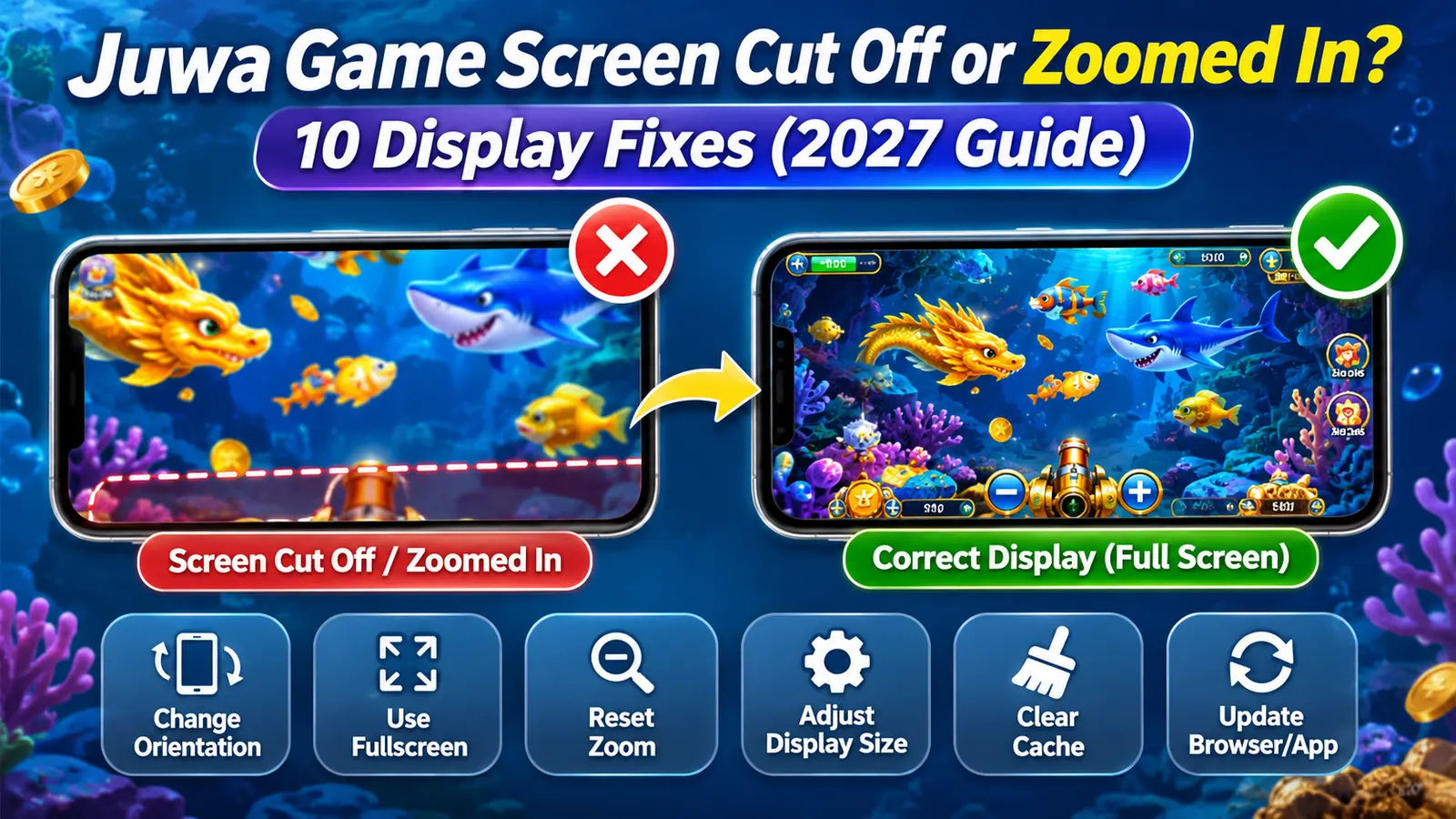
Is your Juwa game screen too large, stretched, zoomed in, or missing important buttons?
Display problems can make it difficult to control fish shooting games, navigate menus, or see the entire game area. Sometimes the cannon button disappears, the game doesn't fit your phone screen, or part of the interface gets hidden behind the navigation bar.
Fortunately, many of these problems can be resolved by adjusting your device or browser settings.
In this guide, we'll explain 10 practical ways to fix Juwa game display problems on Android, iPhone, and desktop browsers.
Why Is My Juwa Game Screen Cut Off?
A Juwa game may not fit your screen correctly for several reasons:
Your device's display scaling is too large.
Browser zoom settings have been changed.
The game is displaying in an unsupported orientation.
Fullscreen mode is not working correctly.
Cached browser data is affecting the layout.
Your device or browser needs an update.
Navigation bars or accessibility settings are reducing the usable screen area.
The exact cause depends on how you access the game.
1. Restart the Juwa Game
Before changing any settings, close the game completely and reopen it.
How to fix it:
Exit the game.
Close it from your recent apps.
Reopen the game.
Check whether the display fits the screen.
This may resolve a temporary interface or rendering problem.
2. Check Your Phone's Display Size Settings
Large display scaling can make game controls or menus appear oversized.
On Android:
Open Settings.
Go to Display or Display & touch.
Find Display size and text.
Adjust the display size toward its default setting.
Reopen the game.
Settings names vary between Android devices.
On iPhone:
Open Settings.
Go to Display & Brightness.
Look for Display Zoom.
Select the standard display option if available.
Check the game again.
Only change display scaling if you're comfortable with smaller interface elements.
3. Reset Browser Zoom to Default
If you're opening a game through a web browser, an incorrect zoom level may cause buttons or graphics to extend beyond the screen.
On desktop Chrome:
Open the game page.
Click the three-dot menu.
Find Zoom.
Set the value to 100%.
Refresh the page.
You can also use Ctrl + 0 on Windows or Command + 0 on Mac to reset Chrome page zoom.
On Android Chrome, you can adjust page zoom through the browser's Accessibility settings.
4. Switch Between Portrait and Landscape Mode
Some arcade-style games are designed for landscape viewing.
If your game is displayed in portrait mode, important controls may be hidden or compressed.
Try rotating your device and checking whether the game adjusts correctly.
If the screen doesn't rotate, review your device's orientation lock settings.
Not every game supports both orientations.
5. Check Fullscreen Mode
Fullscreen issues can cause the game to appear smaller than expected or leave controls behind browser bars.
If the game provides a fullscreen button, try enabling or disabling it.
For desktop browsers, fullscreen mode may also be available using F11.
If fullscreen causes the problem, return to normal viewing mode and restart the game.
6. Clear Browser Cache
Old cached files can sometimes interfere with the layout of a website or browser-based game.
For Chrome:
Open Chrome Settings.
Select Privacy and security.
Open Delete browsing data.
Choose Cached images and files.
Clear the selected data.
Reopen the game.
Avoid clearing cookies or site data unless necessary, because doing so may sign you out or remove locally stored information.
7. Update Your Browser or Game
Outdated software can introduce compatibility problems with newer game interfaces.
Check for available updates to your browser, operating system, or official game application.
Avoid downloading unofficial modified versions of gaming apps, as these may introduce security risks.
After updating, restart your device and check the display again.
8. Disable Screen Magnification
Screen magnification is an accessibility feature that can enlarge part or all of your screen.
If accidentally enabled, it may make a game appear permanently zoomed in.
On Android: Open Settings > Accessibility and review Magnification settings.
On iPhone: Open Settings > Accessibility > Zoom.
Disable the feature temporarily if you do not need it, then check whether the game displays normally.
9. Hide Unnecessary Browser or Navigation Elements
Some phones have limited usable screen space because of browser toolbars, floating buttons, or navigation controls.
Try these steps:
Close floating windows and overlays.
Exit split-screen mode.
Use the game's supported orientation.
Try a normal browser tab rather than an embedded browser.
Check whether the game provides a fullscreen option.
Do not install unknown third-party display-fixing apps.
10. Contact Official Game Support
If none of the above fixes work, the issue may be related to the game's interface or compatibility with your device.
When contacting support, provide:
Device brand and model
Android or iOS version
Game or browser version
Description of the missing or oversized controls
Screenshot showing the display issue
Avoid sharing passwords, verification codes, or sensitive account information.
Quick Troubleshooting Table
ProblemSuggested fixGame screen too largeReset display scaling or browser zoomButtons cut offCheck orientation and fullscreen modeGame stuck in portraitCheck rotation lockScreen zoomed inDisable unwanted magnificationGame layout looks brokenRestart and clear browser cacheDisplay issue after updateCheck software compatibilityOnly one game affectedContact official support
Can a Display Problem Affect Juwa Fish Shooting Controls?
Yes. If parts of the interface are outside the visible screen, it may become difficult to access aiming controls, weapon selection, or the firing button.
However, a missing firing button can also be caused by a separate input or game issue.
If your screen looks normal but the cannon doesn't respond, read our Fish Game Not Shooting? 10 Ways to Fix Cannon, Fire Button & Touch Controls.
Frequently Asked Questions
Why is my Juwa screen zoomed in?
Incorrect browser zoom, device display scaling, or accessibility magnification may cause the screen to appear enlarged.
Why can't I see the firing button in Juwa?
The button may be outside the visible game area because of orientation, fullscreen, or display scaling problems. It may also be a game-specific issue.
How do I make Juwa fullscreen?
Use the game's fullscreen option if one is available. On compatible desktop browsers, you can also try the browser's fullscreen mode.
Will clearing the cache delete my Juwa account?
Clearing cached images and files normally does not delete an online account. However, clearing cookies or app storage may sign you out or remove locally saved settings.
Can I fix Juwa screen problems without reinstalling?
Often, yes. Restarting the game, adjusting zoom, changing orientation, or updating your browser may resolve the problem.
Final Thoughts
A Juwa game screen that is cut off, stretched, or zoomed in can make gameplay frustrating. Fortunately, many display issues come from device settings, browser zoom, fullscreen behavior, or temporary rendering problems.
Start with the simplest fixes: restart the game, check your screen orientation, and reset zoom settings. If the issue continues across multiple devices, contact the official support channel.
For more gaming tutorials and troubleshooting articles, explore the Juwaday VIP Blog.
Disclaimer: This article provides general troubleshooting information. Game interfaces and availability may vary. Follow applicable local laws and platform rules.